
How to Set Up Your MacBook for Web Development in 2021
A guide to getting your Mac ready for web development — tools, shortcuts, accessories, tips and tricks, and more
Every now and then, I look for guides like this one to see what other people are using — I almost always learn something new that makes my life as a developer easier.
In this post I go over tools, shortcuts, tips and tricks that I deem essential for a productive setup, in the hopes that it will be useful to other developers.
Contents
macOS Settings
Let’s start with a few changes you can make to macOS and the built-in apps.
System preferences
Keyboard
Keyboard > T️️ouch Bar Shows: F1, F2, etc. Keys
Keyboard > Press Fn key to: Show Control Strip
These two settings are about the touch bar. As a developer, I find myself using the F keys more often (a lot of shortcuts rely on them) than the other options — so I prefer to have them be the default.
Dock
️️☑️ Automatically hide and show the Dock
More often than not, I use Spotlight (⌘ Space) or the terminal to launch applications instead of the dock — it’s hard to justify dedicating such display real estate to it. Besides, you can easily access it by moving your mouse to the bottom of the screen or by pressing ⌃ F3.
Trackpad
Point & Click > ️️☑️ Tap to click
Once you get used to it, it’s way faster to tap instead of click.
Accessibility
Pointer Control > Mouse & Trackpad > Trackpad Options… > ️️☑️ Enable dragging
By enabling trackpad dragging, you’ll be able to drag files, select text, etc., by double tapping (and holding the second tap).
Finder
Preferences
Preferences > Advanced > ☑️ Show all filename extensions
View options
View > Show Path Bar View > Show Status Bar
Show hidden files
Type defaults write com.apple.Finder AppleShowAllFiles true into the terminal, or press ⇧⌘ .
Screenshot
Change where screenshots are saved
Open the Screenshot app via Spotlight search or by pressing ⇧⌘ 5, find the Options menu at the bottom of the screen, then select a folder under Save to
macOS Shortcuts
These are the mac shortcuts I use the most (I won’t list the very basic ones like ⌘ C, ⌘ V, ⌘ Tab, etc.). For a more comprehensive list, click here.
System wide
Spotlight search: ⌘ Space
Character Viewer: ⌃⌘ Space (Quickly find emojis and special characters)
Force quit an app: ⌥⌘ Esc
Lock screen: ⌃⌘ Q
Show or hide the Dock: ⌃ F3 or ⌥⌘ D
Show all windows: ⌃ Arrow-Up
Show all windows of the front app: ⌃ Arrow-Down
Forward delete: fn delete
Paste without formatting: ⇧⌘ V
Screenshot
Open Screenshot app: ⇧⌘ 5
Save screenshot of the screen: ⇧⌘ 3
Save screenshot of a portion of screen: ⇧⌘ 4
Save screenshot of a window: ⇧⌘ 4 + Space
Copy screenshot of the screen: ⇧⌃⌘ 3
Copy screenshot of a portion of screen: ⇧⌃⌘ 4
Copy screenshot of a window: ⇧⌃⌘ 4 + Space
Finder
Open the home folder: ⇧⌘ H
Open the desktop folder. ⇧⌘ D
Open the parent folder: ⌘ Arrow-Up
Go to the previous folder: ⌘ [
Go to the next folder: ⌘ ]
Show or hide hidden files: ⇧⌘ .
Command-line Tools
Now the fun part! These are the command line–related tools I recommend for any web developer.
Homebrew
This is the package manager. It allows you to install, uninstall, and update command-line tools and Mac applications.
To install it, open the terminal, and run this command:
/bin/bash -c “$(curl -fsSL https://raw.githubusercontent.com/Homebrew/install/master/install.sh)"
During the installation, you might be asked to install the Xcode Command Line Tools if you haven’t already — just follow the instructions on the screen.
To make sure your system is ready to brew, run brew doctor.
You can now search for packages with brew search and install them with brew install. You can also list installed packages with brew list.
To update the packages’ local registry you can run brew update, and to upgrade the installed packages to their latest versions, type brew upgrade.
I recommend running brew doctor every now and then to make sure things are good and brew cleanup to remove unused files.
iTerm2
This is an optional replacement for the terminal app. It offers a lot of really useful features. I’ll list my favorite ones below.
To install it, open the terminal (this is the last time you’ll need it), and run the following:
brew install --cask iterm2
Now, feel free to replace terminal from the Dock (if you have it) with iTerm2. Or just open Spotlight (⌘ Space) and type iTerm2.
Hotkey window
You can show or hide the iTerm2 window via a hotkey from anywhere very quickly.
Preferences > Keys > Hotkey > ☑️ Show/hide all windows with a system-wide hotkey
I recommend using ⌘ ` as the hotkey.
Unixyness
Copy on selection, paste on middle click, and focus follow the mouse.
Preferences > General > Selection > ☑️ Copy to pasteboard on selection
Preferences > Pointer > General > ☑️ Three-finger tap emulates middle click
Preferences > General > Pointer > ☑️ Focus follows mouse
Disable native full screen
By disabling native full screen, you can quickly make iTerm2 take the whole screen without the usual full-screen animation.
Preferences > General > Window > ☐ Native full screen windows
Shortcut for full screen: ⌘Return
Split panes
You can divide up your tabs into multiple panes with separate sessions and quickly switch between them. This works very nicely with focus-follow mouse.
Right Click > Split Pane Vertically
Right Click > Split Pane Horizontally
I recommend creating new key bindings for those actions:
Preferences > Keys > Key Binding > +
Shell integration
You can enable better integration between your shell and iTerm2.
iTerm2 > Install Shell Integration
Then, add the following to your .zshrc (more details about Zsh can be found in the next sections): source ~/.iterm2_shell_integration.zsh.
See the docs for more information.
Profile settings
Feel free to explore these settings and configure your profile to your liking. I recommend experimenting with background opacity and blur.
Git
The most popular version-control system. You can install it with Homebrew:
brew install git
Check out this cheat sheet by JRebel:

Lazygit
A simple terminal UI for git commands.
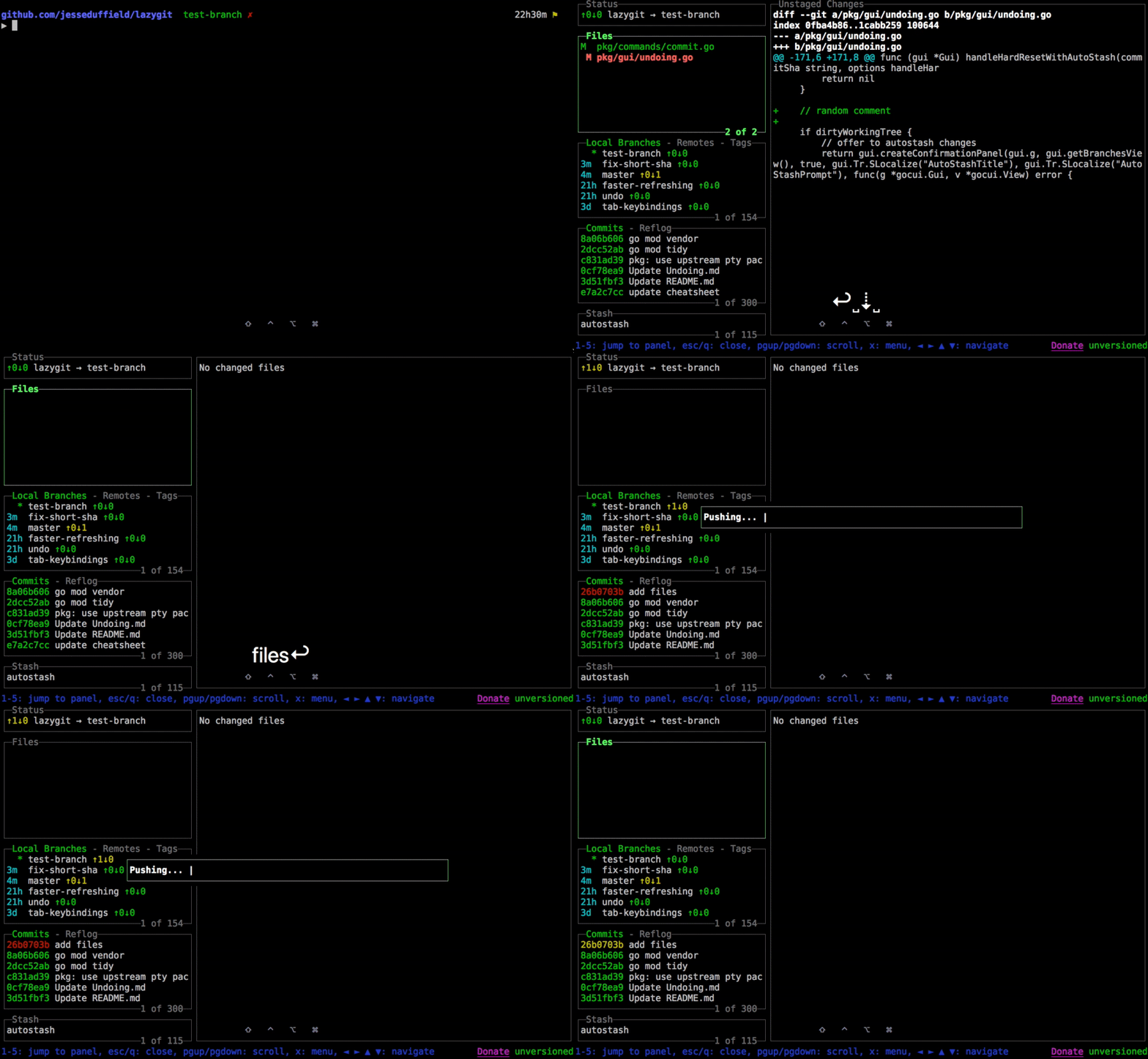
This tool will make you 100% more productive when using Git via CLI. It makes rebasing, stashing, renaming and moving commits a breeze. Check out this video tutorial to see what you can do with it.
To install it, run:
brew install lazygit
Delta
A viewer for git and diff output.
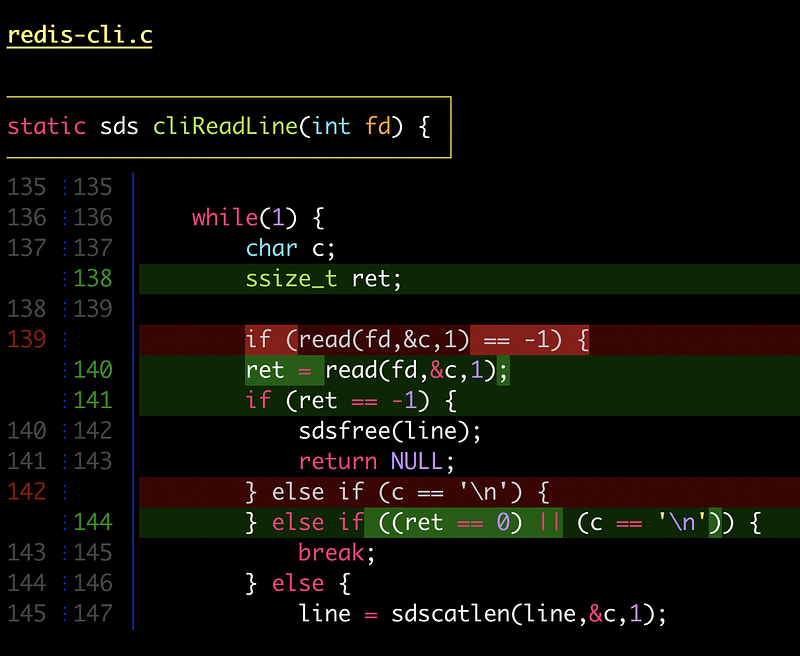
To install it, run:
brew install git-delta
Zsh
As macOS’s default shell since Catalina, Zsh is built on top of Bash and provides many cool features.
The first thing I recommend is having Homebrew manage its installation — open iTerm2, and run:
brew install zsh
To update our default shell to be Homebrew’s Zsh, we need to edit the shell’s whitelist: sudo vim /etc/shells. (If you’re not comfortable with Vim, you can use TextEdit instead by running sudo open /etc/shells.)
Add a new line with /usr/local/bin/zsh, save, and close.
To change the default shell, run: chsh -s /usr/local/bin/zsh.
Restart the terminal, and confirm we’re on the correct Zsh by running:
echo $SHELL. You should see /usr/local/bin/zsh.
Now, we have access to many features. My favorites are:
Tab completion
Press TAB to complete a command:
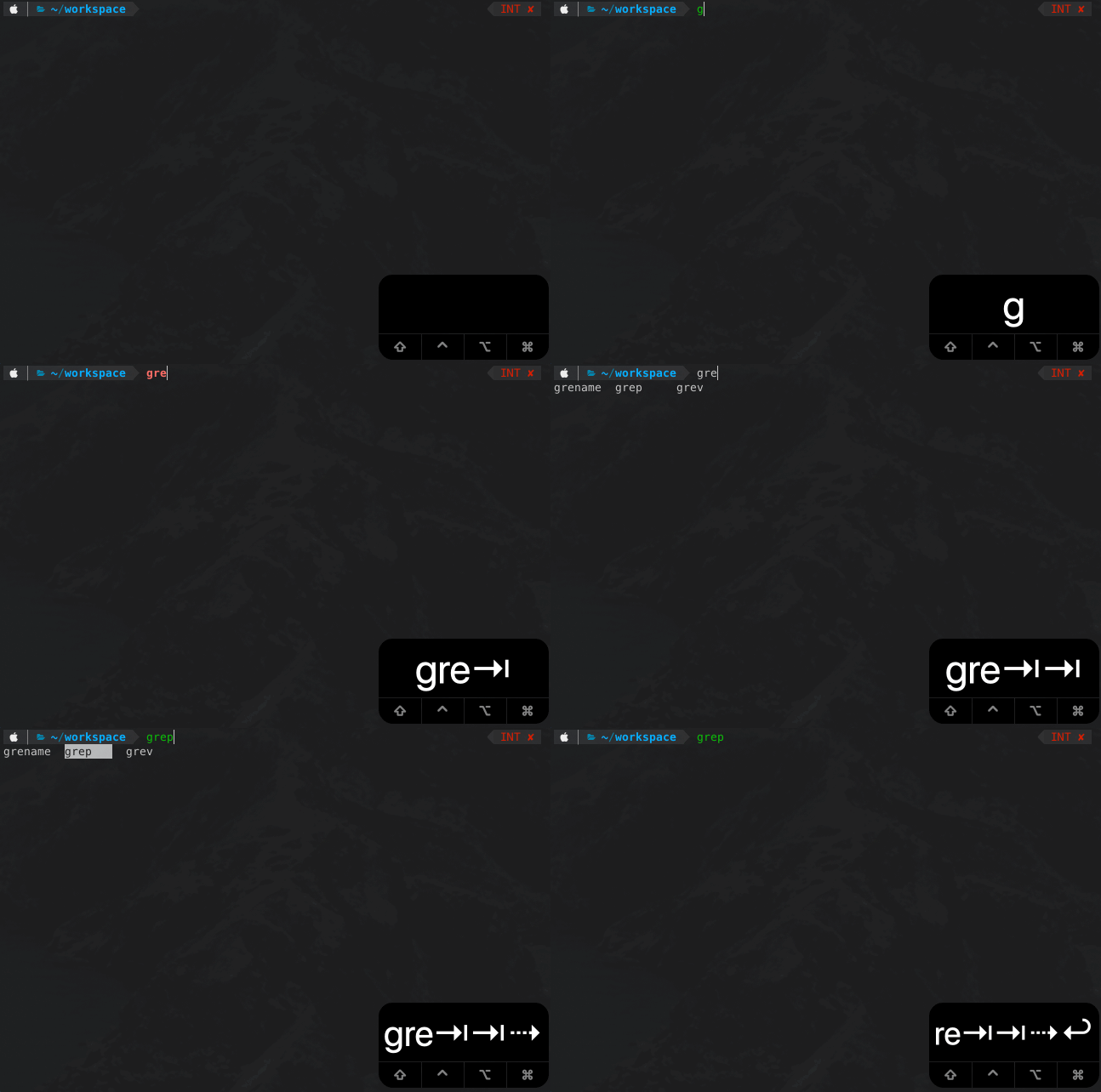
Zsh will show you all the available commands you can use. If you press TAB again, you’ll be able to navigate between the options by pressing TAB or the RIGHT and LEFT arrows. Confirm the command you want by pressing SPACE or RETURN.
Press TAB to complete file and folder names:

And it’s smart enough if you type just a substring: cd p/s<TAB> expands to cd project/src.
Globbing (aka filename generation)
List only files in the current directory: ls *(.)
List only folders in the current directory and its subdirectories: ls **/*(/)
Remove all .DS_Store files recursively: rm -rf **/.DS_Store. (If you want to be sure which files will be deleted, you can press TAB before running the command, and Zsh will expand the pattern)
There are lots of qualifiers you can use to target files with specific attributes. You can enable the more complex ones by running setopt extended_glob.
Here’s one command to recursively match all normal files that have no uppercase characters or numbers in the name. They’re executable for the owner but not for the rest of the world. The owner must have the UID 1002, the file size must be above 30MB, and it must have been modified within the last month: ls -l **/([^A-Z[:digit:]])##(#q.x^X^u1002Lm+30mM-1)
You can find many other useful tips here.
And my list of keyboard shortcuts:
Oh My Zsh
Oh My Zsh is a community-driven framework for managing your Zsh configuration. It provides hundreds of plugins and themes and makes configuring Zsh a breeze.
To install Oh My Zsh, run:
sh -c “$(curl -fsSL https://raw.github.com/ohmyzsh/ohmyzsh/master/tools/install.sh)"
We can configure Zsh by running vim ~/.zshrc or (open ~/.zshrc if you prefer TextEdit over Vim). You’ll see a lot of configurations added by Oh My Zsh that you can play with. If you ever need to reset your .zshrc, you can find the template here.
I’ll list my recommendations below, but I highly recommend you browse the available themes and plugins later.
Theme
Powerlevel10k is my theme of choice — it’s fast, it’s really well integrated with Git, it supports icons, and a lot more.
It has a really nice wizard that walks you through configuring it the first time that you run it:
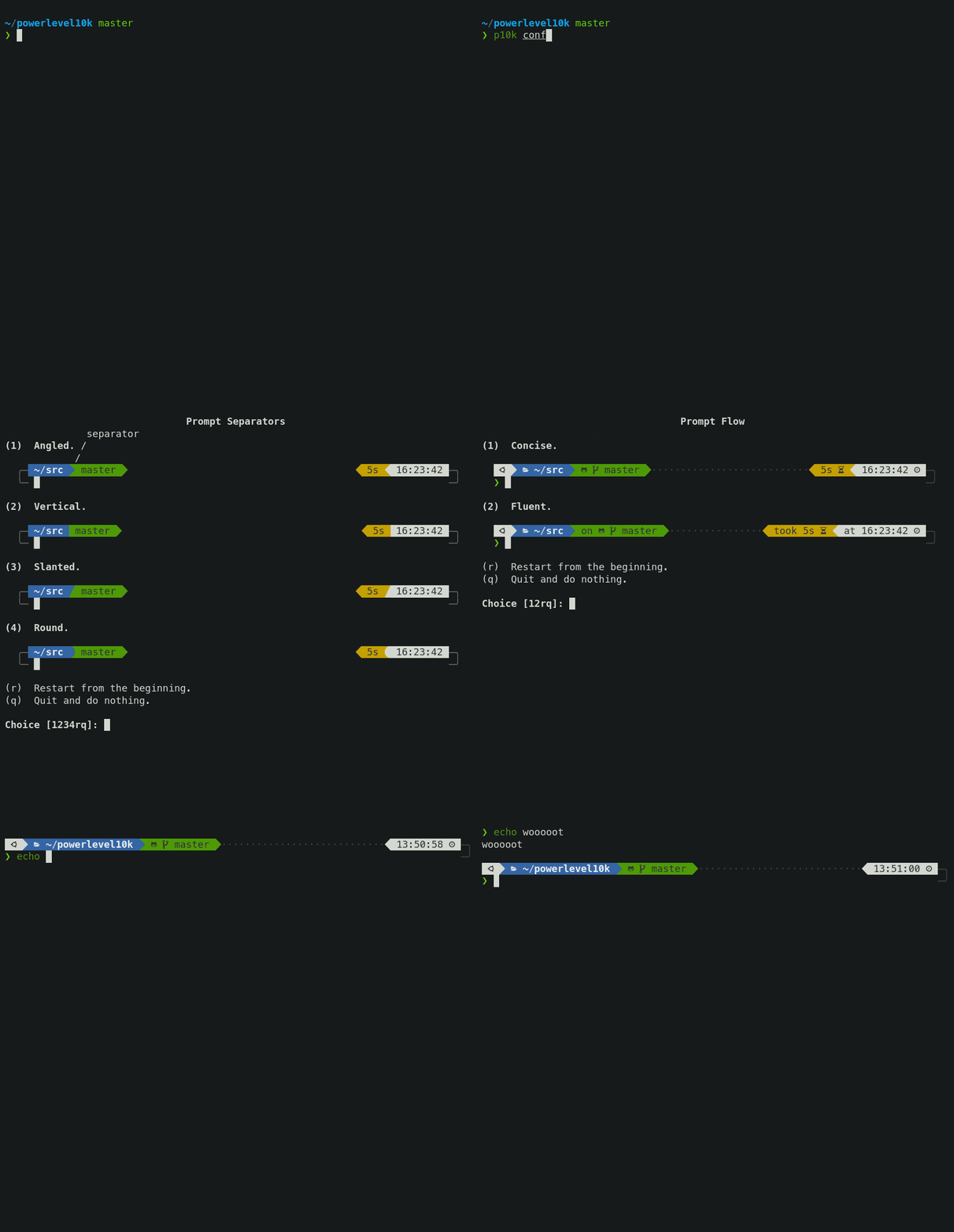
Powerlevel10k configuration wizard
I highly recommend enabling Transient Prompt.
To install it with Homebrew, run:
brew install romkatv/powerlevel10k/powerlevel10k
And add the following line to your .zshrc:
source /usr/local/opt/powerlevel10k/powerlevel10k.zsh-theme
It’ll override any value you have set to$ZSH_THEME.
Restart iTerm2, and you should see the configuration wizard. In the future, you can run it again with p10k configure.
Zsh plugins
zsh-syntax-highlighting: It enables highlighting of commands while they’re typed. This helps in reviewing commands before running them, particularly in catching syntax errors.
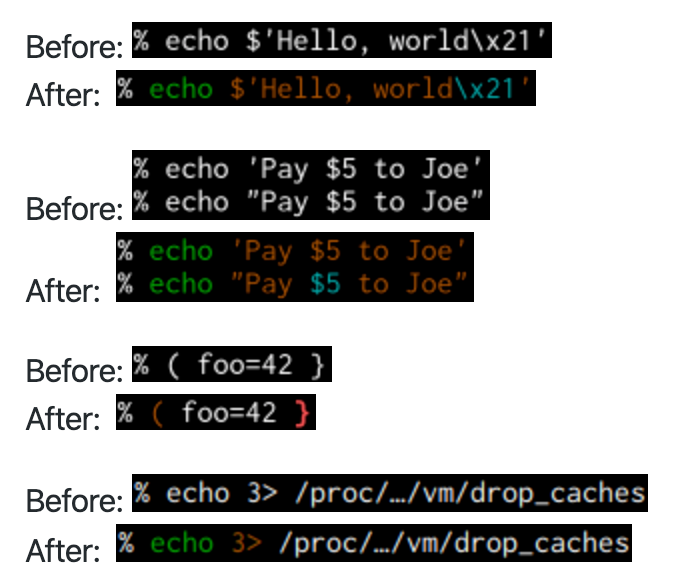
To install it, run:
brew install zsh-syntax-highlighting
And add the following line to your .zshrc:
source /usr/local/share/zsh-syntax-highlighting/zsh-syntax-highlighting.zsh
- zsh-autosuggestions: It suggests commands as you type based on your history and completions.
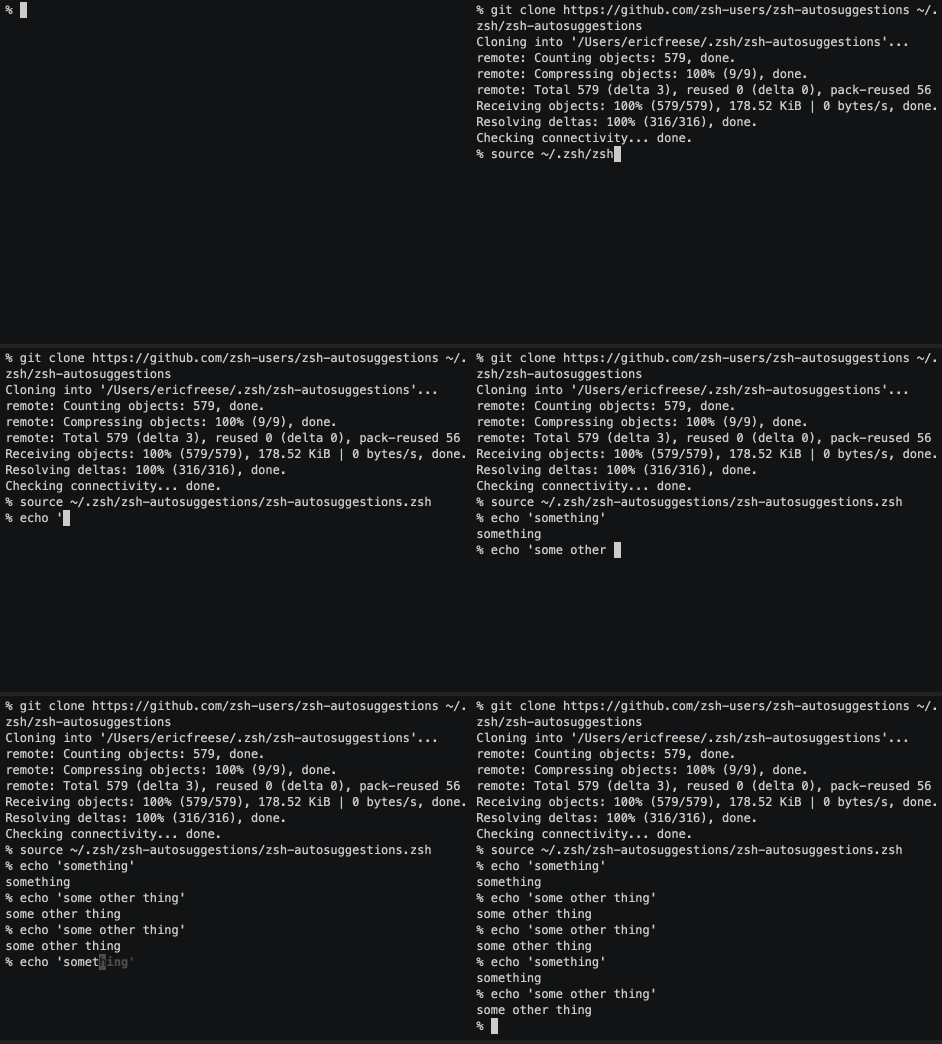
To install it, run:
brew install zsh-autosuggestions
And add the following line to your .zshrc:
source /usr/local/share/zsh-autosuggestions/zsh-autosuggestions.zsh
- zsh-history-substring-search: Type in any part of any command from your history, and then press chosen keys, such as the
UPandDOWNarrows, to cycle through matches.
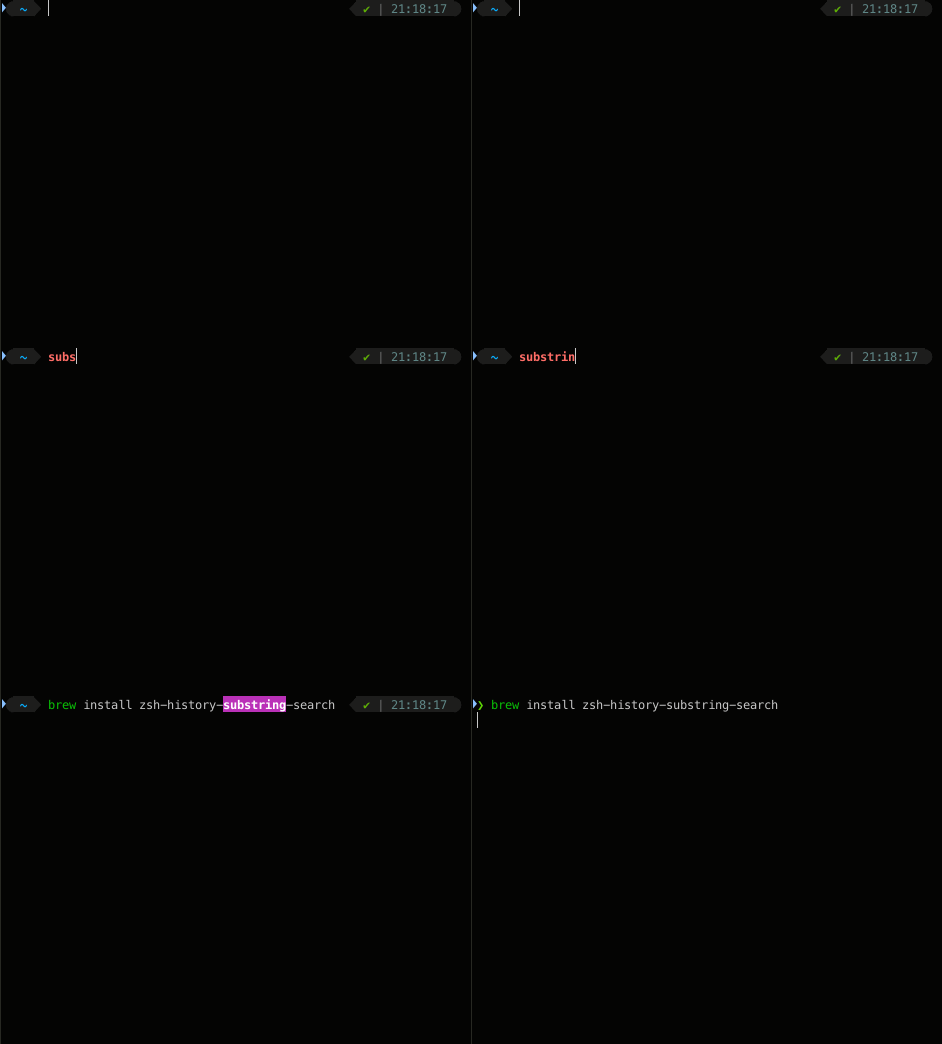
To install it, run:
brew install zsh-history-substring-search
And add the following line to your .zshrc:
source /usr/local/share/zsh-history-substring-search/zsh-history-substring-search.zsh
If you want to use zsh-syntax-highlighting along with this script, then make sure you load it before you load this script.
Also, you need to map your arrow keys. Add the following after the source command.
bindkey '^\[OA' history-substring-search-up
bindkey '^\[OB' history-substring-search-down
Oh My Zsh plugins
The following plugins are made available by Oh My Zsh, like any other plugin found here. To install it, just add its name to the plugins array in your .zshrc file.
For example, to install all the recommended plugins:
plugins=(alias-finder brew common-aliases copydir copyfile docker docker-compose dotenv encode64 extract git jira jsontools node npm npx osx urltools vscode web-search z)
- alias-finder: This plugin searches the defined aliases and outputs any that match the command inputted. This makes learning new aliases easier.
- brew: The plugin adds several aliases for common brew commands
- common-aliases: This plugin creates helpful shortcut aliases for many commonly used commands
- copydir: Copies the path of your current folder to the system clipboard
- copyfile: Puts the contents of a file in your system clipboard so you can paste it anywhere
- docker: This plugin adds auto-completion for Docker.
- docker-compose: This plugin provides completion for Docker Compose — as well as some aliases for frequent Docker Compose commands
- dotenv: Automatically load your project ENV variables from a
.envfile when youcdinto the project root directory - encode64: Alias plugin for encoding or decoding using the
base64command - extract: This plugin defines a function called
extractthat extracts the archive file you pass it, and it supports a wide variety of archive file types - git: Provides many aliases and a few useful functions
- jira: CLI support for Jira interaction
- jsontools: Handy command-line tools for dealing with JSON data
- node: This plugin adds the
node-docsfunction, which opens the specific section in the Node.js documentation - npm: The npm plugin provides completion as well as adding many useful aliases.
- npx: This plugin automatically registers the npx command-not-found handler if
npxexists in your$PATH - osx: This plugin provides a few macOS utilities
- urltools: This plugin provides two aliases to URL encode and URL decode strings
- vscode: This plugin makes interaction between the command line and the VS Code editor easier
- web-search: This plugin adds aliases for searching with Google, Wikipedia, Bing, YouTube, and other popular services
- z: This plugin defines the z command that tracks your most visited directories and allows you to access them with very few keystrokes
Aliases
Often-used commands can be abbreviated with an alias. alias tf=”tail -f” makes it so you can run tf instead of typing tail -f.
You can add as many aliases as you want to your .zshrc.
Plugins like Git and Common Alias add a lot of aliases that will make you type less, but it can be hard to learn them all. That’s what the alias-finder plugin is for.
If you want to know what aliases exist forgit commit:

You can also set ZSH_ALIAS_FINDER_AUTOMATIC=”true” in your .zshrc to have it run automatically before each command.
There are three types of aliases:
- command aliases: just like the
tfexample above - global aliases: which are substituted anywhere on a line. For example, the
Galias added by the common-aliases plugin gets replaced by| grep.ls G foobar=>ls | grep foobar - suffix aliases: These are special aliases that are triggered when a file name is passed as the command. For example:
alias -s pdf=acroreadinvokesacroreadwhen you runfile.pdf.
Command aliases can also access the original command’s arguments by using the array $:
loop() {
  for x in {1..$1}; do $@\[2,-1\]; done
}
This alias runs a given command x times. For example: loop 10 echo ‘hello’ will print hello 10 times.
Node.js
The JavaScript runtime built on Chrome’s V8 JavaScript engine. This is the most popular framework for running and building web applications.
To install it, run:
brew install node
If you need to manage multiple applications that need different versions of Node, I recommend nodenv.
Docker
Docker allows you to develop and deliver software in packages called containers. Containers are isolated from one another and bundle their own software, libraries and configuration files.
To install it, run:
brew install --cask `docker`
You should also check out lazydocker, a great CLI tool for docker and docker-compose.
tldr
A collection of simplified and community-driven man pages.
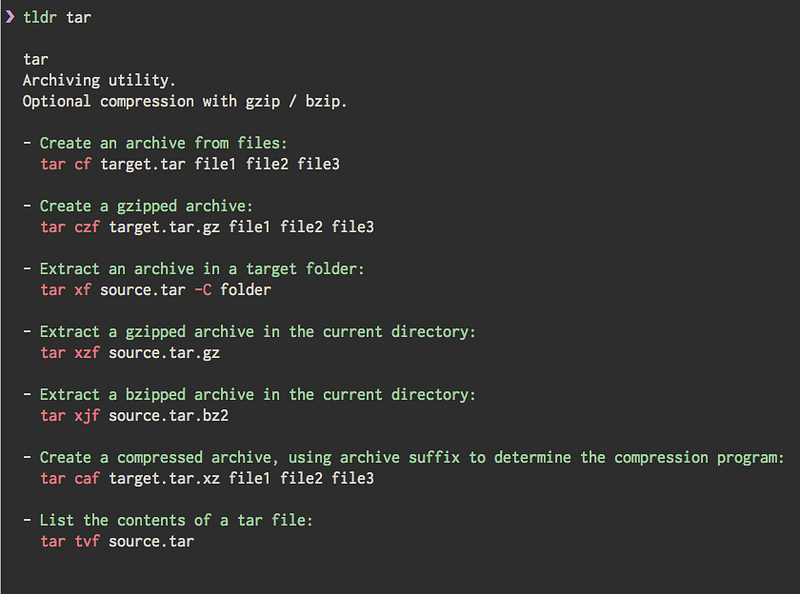
To install it, run:
brew install tldr
htop
It’s similar to top but allows you to scroll vertically and horizontally so you can see all the processes running on the system, along with their full command lines.
To install it, run:
brew install htop
fzf
A command-line fuzzy finder.
I wrote a dedicated article for fzf, check it out:
To install it, run these two lines:
brew install fzf
It works really well with fd and bat.
ripgrep
A line-oriented search tool that recursively searches your current directory for a regex pattern. By default, ripgrep will respect your .gitignore and automatically skip hidden files/directories and binary files.
To install it, run:
brew install ripgrep
lnav
Watch and analyze your log files from a terminal.
brew install lnav
MacOS Applications
These are the macOS applications I recommend.
Amphetamine
Amphetamine is a macOS utility that can keep your Mac awake during times or situations you define. Amphetamine is highly customizable, allowing you to keep your Mac awake for a specified duration, or when conditions are met.
You can install it from the App Store.
Maccy
Clipboard manager for macOS
To install it, run:
brew install maccy
Visual Studio Code
The best IDE/editor for web development at the moment (in my opinion, of course). It’s fast with tons of extensions, and it’s open-source.
To install it, run:
brew install --cask visual-studio-code
You can find lots of great extensions for the most popular languages and frameworks in the Visual Studio Marketplace.
Rectangle
Move and resize windows in macOS using keyboard shortcuts or snap areas.
I use Rectangle a lot — you should master its shortcuts. The main ones I use are:
Left half: ⌥⌘ Arrow-Left
Right half: ⌥⌘ Arrow-Right
Top half: ⌥⌘ Arrow-Up
Bottom half: ⌥⌘ Arrow-Down
Center window: ⌥⌘ C
Maximize window: ⌥⌘ F
And if you have multiple displays, you’ll find these very handy:
Next display: ⌃⌥⌘ Arrow-Right
Previous display: ⌃⌥⌘ Arrow-Left
To install it, run:
brew install --cask rectangle
Divvy and Magnet are good alternatives for window management.
GIMP
A feature rich image editor, and it’s free.
To install it, run:
brew install --cask gimp
Alfred
Alfred is a productivity app that replaces Spotlight. There’s a free and a paid version.
This is more like a honorable mention because I don’t really use it anymore, as Spotlight is good enough for me. But if you are interested you can give it a try.
To install it, run:
brew install --cask alfred
Numi
A beautiful calculator app for Mac.
To install it, run:
brew install --cask numi
Web Tools
Free web tools you can use directly from your browser.
gifcap
Create animated GIFs from a screen recording.
Clippy
CSS clip-path maker.
Graphviz Online
Generate diagrams programmatically.
dbdiagram.io
Draw ER diagrams by just writing code.
uiGradients
Gradient generator.
Get Waves
Generate svg waves.
Create App
Frontend build config generator.
keycode.info
Press any key to get the JavaScript event keycode.
Boxy
SVG editor.
Mastershot
Video editor.
Thanks for reading — I hope you learned something new today.
Take care and I’ll see you next time.