
Implementing a Dark Mode switch
Add color scheme responsiveness to your web app
Dark mode (aka light-on-dark color scheme) has become very popular in the past few years. It’s arguably easier on the eyes and battery and it’s supported by all major operating systems for desktop and mobile devices.
In this article, I’ll show you how you can make your web application responsive to the color scheme chosen by the user at the operating system level as well as adding a color scheme switch that remembers the user’s choice by saving it in the browser’s local storage.
Contents
prefers-color-scheme
Just as we use CSS media queries to make our web applications responsive to screen resolutions, so we can also use media queries to add responsiveness to the user’s preferred color scheme.
body {
  background: white; color: black;
}

@media (prefers-color-scheme: light) {
  body {
    background: white; color: black;
  }
}

@media (prefers-color-scheme: dark) {
  body {
    background: black; color: white;
  }
}
You can see it live in the code sandbox below:
Pro-tip
For testing purposes, you can force the value to be light or dark via Chrome developer tools.
Open DevTools (F12), press shift+cmd/ctrl+P to run a command, type prefers, and select an option:
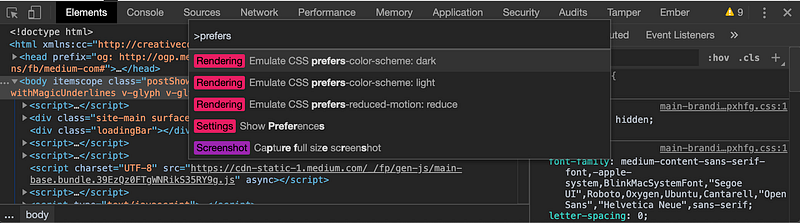
You can also find these options by clicking on the three vertical dots on the right, then More Tools > Rendering.

Dark mode switch
In order allow the users to toggle dark mode on and off regardless of their operating system preferences, we will need to use some Javascript.
We’ll start by adding data-color-scheme data attribute to the root element. When the page first loads the value will be set according to the system preferences.
const getPreferredColorScheme = () => {
  const darkQuery = "(prefers-color-scheme: dark)";
  const darkMQL = window.matchMedia ? window.matchMedia(darkQuery) : {};
  if (darkMQL.media === darkQuery && darkMQL.matches) {
   return "dark";
  }

  return "default";
};

document.documentElement.setAttribute("data-color-scheme", getPreferredColorScheme());
Next, we’ll add a set of variables that will change based on this data-attribute.
:root {
  --color-text: #191924;
  --color-background: #fff;
}

:root\[data-color-scheme="dark"\] {
  --color-text: #fff;
  --color-background: #0d202d;
}

body {
  color: var(--color-text);
  background-color: var(--color-background);
}
Finally, for the switch, add a button to your HTML:
<button id="button">Toggle Dark Mode</button>
and a click event handler to your Javascript:
document.getElementById("button").onclick = () => {
  const colorScheme = document.documentElement.getAttribute("data-color-scheme");

  document.documentElement.setAttribute("data-color-scheme", colorScheme === "default" ? "dark" : "default");
};
You can see a live demo here:
Remembering user’s choice
You’ll notice that if the page is reloaded the value of the data-attribute is reset. In order to remember the user’s choice of color scheme, we’ll be using local storage to save the data-attribute value.
When the page loads, we need to check if there’s a value we can use:
const colorScheme = localStorage.getItem("color-scheme") || getPreferredColorScheme();

document.documentElement.setAttribute("data-color-scheme", colorScheme);
And, we need to save the new value when the switch is used:
document.getElementById("button").onclick = () => {
  const colorScheme = document.documentElement.getAttribute("data-color-scheme");

  const newColorScheme = colorScheme === "default" ? "dark" : "default";

  document.documentElement.setAttribute("data-color-scheme", newColorScheme);

  localStorage.setItem("color-scheme", newColorScheme);
};
Further Reading
There’s lots more than just light text on a dark background that you can and should do when implementing a dark mode. I recommend taking a look at these two articles:
Dark theme in a day: Using a bunch of modern CSS to create a night mode for an app
Thanks for reading. I hope you learned something new today. Take care and I’ll see you next time.